If you have been previously set up as an email admin for your domain, you can use these directions to reset an email user’s passwords.
Step 1: Log in to your domain’s Mail Administration Control Panel (Plesk). Usually this is at http://yourwebsite.com/mail
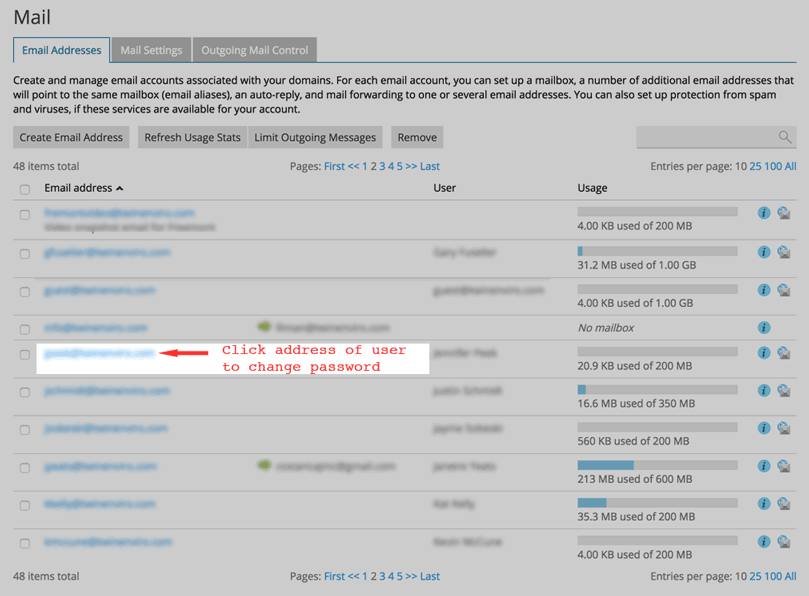
Step 2: Click on ‘Mail’ on the left side if you aren’t already at the list of users, or if you are already there, click on the email address of the user whose password you want to change. See image below
Step 3: Enter the new password for the user, and enter the same password in the ‘Confirm Password’ box. You can click the ‘Show’ button so you can make sure you know the password you are entering. See image below.
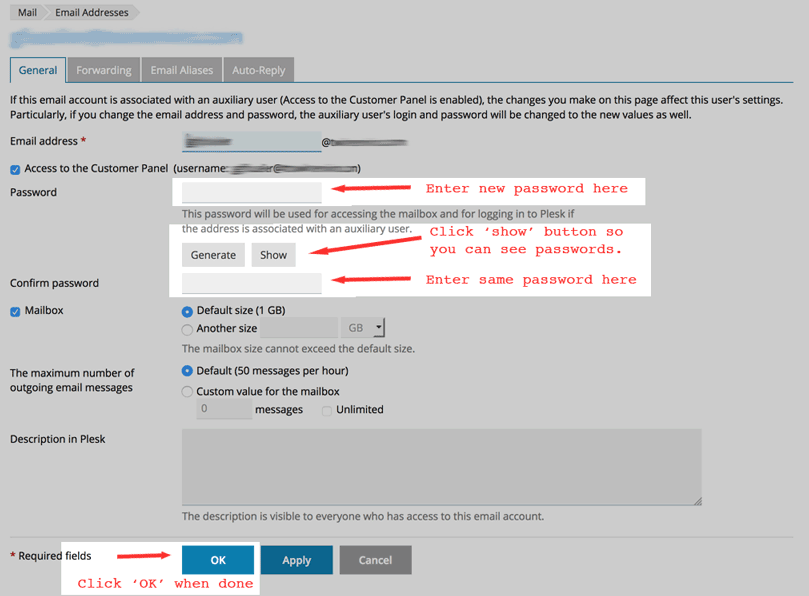
Step 4: Click the ‘OK’ button to save your changes.